
Step One
Login
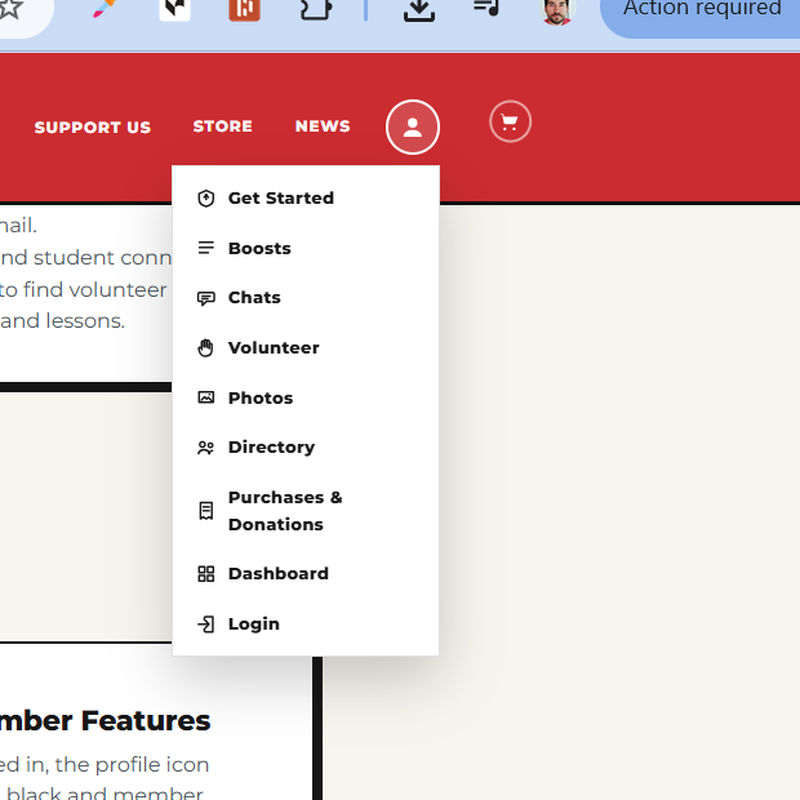
Open the member dropdown from the profile icon and choose Login.
Login
Use this page as a quick tour of the everyday parent tools on BeechwoodBands.org.
Open the member dropdown from the profile icon and choose Login.
Use the email address you currently use to receive band communications.
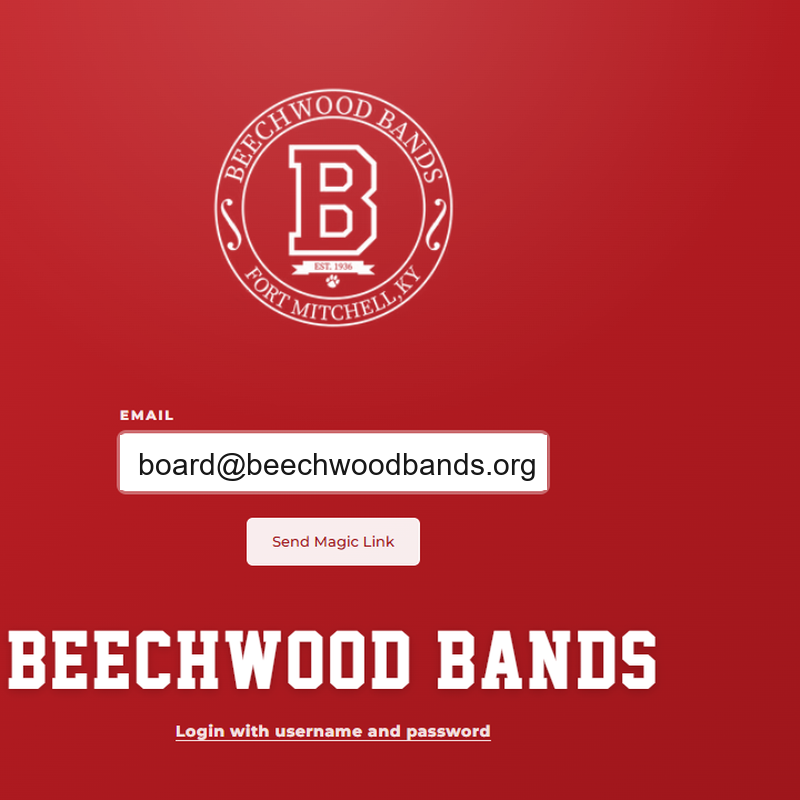
All band parents who are also booster members should receive a login link sent to their email.
Once logged in, the profile icon changes to black and member features become available.
Check out the tips below for how to use each member feature.
Read parent updates, ask questions, reply to posts, save helpful information, and follow member conversation.
Open BoostsUse member chat channels for quick group conversation and mentions when a channel is available to you.
Open ChatsBrowse open volunteer needs, add yourself to a shift, and manage your own signups.
Open VolunteerBrowse shared band photos, save favorites, and download images when photo access is available.
Open PhotosSearch for booster families, open member profiles, and use shared contact information inside the member community.
Open DirectoryFind paid orders, receipts, donation records, and recurring-donation controls tied to your email.
Open Purchases & DonationsCheck your Tiger Den, profile settings, documents, orders, to-do items, and volunteer work from one place.
Open DashboardParents can sign in, update profile and contact information, see linked students, read member updates, search the directory, volunteer, view purchases and receipts, make donations, use private lessons, and access shared documents.
You can view many public pages without an account, but member tools such as the dashboard, directory, documents, volunteer signups, and family information require sign-in.
Open the sign-in page, enter the email connected to your booster account, and use the secure link sent to your inbox.
Check spam or promotions first, then make sure you used the email address the boosters have on file. If it still does not arrive, ask a booster officer or site admin to confirm your account email.
Sign in, open your dashboard, choose Settings, and update your contact details there.
Your account may not be linked to the correct household or student yet. Contact a booster officer or site admin so they can update the connection.
Yes. The site is built around household and guardian connections, so more than one adult can be linked when the records are set up correctly.
Member information is intended for the signed-in booster community. Sensitive student details are limited by role and are not shown broadly.
Open Directory while signed in and type part of a parent name, student name, email, phone number, or role into the search box.
Profile and contact updates start in Settings. If something should not appear or looks wrong, ask a booster officer or site admin to adjust the record.
Open Volunteer Opportunities, choose an open opportunity or shift, and select Add Me.
Your dashboard shows your volunteer work when you have active signups or assigned tasks.
Return to the volunteer opportunity or your volunteer summary and use the cancel option on your own signup.
Sign in, open your dashboard, and choose Documents.
Receipts are sent by email after successful payments. You can also open Purchases & Donations to review paid orders and recurring donation records.
Recurring donations renew through Stripe on the schedule shown at checkout. The purchase portal shows active recurring gifts and eligible cancellation controls.
Open Purchases & Donations, choose the recurring gift, and use the cancellation option if it is available for that donation.
Parents and guardians handle lesson-package purchases. Students can schedule lessons only when credits are already available.
Students can schedule with available credits, but purchase controls are kept with parents and guardians.
Contact a booster officer or site admin with your name, student name, and the email address you are using to sign in.